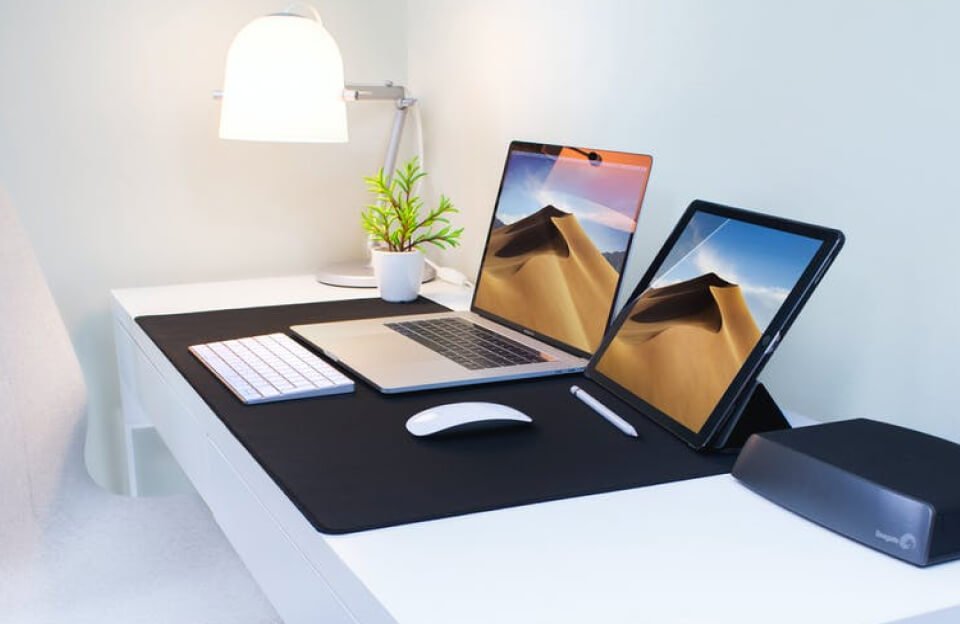
Do you want to run macOS and Windows 10 on the same computer? Many developers, designers, and power users need both operating systems for work, testing, or gaming. Luckily, there are several ways to do it without buying a second PC.
In this guide, we’ll cover the best and easiest methods to run macOS and Windows 10 together in 2026, including dual boot, virtualization, and more.
Why Run macOS and Windows 10 on One PC?
- Use macOS-exclusive apps (like Final Cut Pro or Xcode) while keeping Windows for gaming and software.
- Test websites and apps on both systems.
- Save money and desk space.
- Switch between operating systems quickly.
Method 1: Dual Boot macOS and Windows 10 (Native Performance)
Dual booting lets you install both macOS and Windows 10 on the same hard drive. At startup, you choose which OS to boot into.
Best for:
- Intel-based Macs (using Boot Camp)
- Windows PCs (Hackintosh setup)
Steps for Intel Mac:
- Use Apple’s built-in Boot Camp Assistant to create a Windows 10 partition.
- Install Windows 10 from a USB.
- Restart and hold the Option key to switch between macOS and Windows.
For Windows PC (Hackintosh): You can install macOS on a Windows computer using OpenCore bootloader. This method gives native speed but requires compatible hardware and careful setup. Note that Hackintosh is not officially supported by Apple.
Pros: Best performance Cons: Requires reboot to switch OS, more complex setup
Method 2: Virtualization (Run Both at the Same Time)
The easiest and most popular way in 2026 is using a virtual machine (VM). This allows you to run macOS inside Windows or Windows inside macOS without rebooting.
Recommended Tools:
- Parallels Desktop – Best overall performance and integration (especially on Apple Silicon Macs)
- VMware Fusion / Workstation – Great free or paid option
- VirtualBox – Free and simple for beginners
- UTM – Free and lightweight for Apple Silicon
How to run Windows 10 on a Mac: Use Parallels or VMware to create a virtual machine and install Windows 10 ISO.
How to run macOS on a Windows PC: Use VirtualBox or VMware Workstation to run a macOS virtual machine (requires a macOS image).
Pros: Run both OS at the same time, easy file sharing, no reboot needed Cons: Slightly lower performance than native
Method 3: Cloud Solutions (No Installation Needed)
If you don’t want to install anything locally, use cloud services like MacinCloud or virtual Windows desktops. This is good for occasional use but requires a stable internet connection.
Important Notes in 2026
- Apple Silicon (M1/M2/M3/M4) Macs: Boot Camp is not supported. Use virtualization tools like Parallels.
- Hackintosh on PC: Still possible with OpenCore, but it can be unstable with newer macOS versions. Always check hardware compatibility first.
- Legal Note: macOS is officially licensed only for Apple hardware. Running it on non-Apple PCs (Hackintosh) may violate Apple’s terms.
Which Method Should You Choose?
- Need maximum performance → Dual Boot
- Want to use both OS simultaneously → Virtualization (Parallels recommended)
- Beginner or testing only → Start with VirtualBox or Parallels trial
Final Tips
- Always back up your data before making changes.
- Keep both systems updated for better security.
- Use shared folders and clipboard integration in VMs for smoother workflow.
If you have a specific setup (Intel Mac, Apple Silicon Mac, or Windows PC), tell us in the comments and we’ll give more tailored advice.